80 comments found.
I’m absolutely amazed by your video project! The way you captured and presented the visuals is truly impressive. I invite you to explore my profile, where you can find a collection of inspiring content that may ignite your creativity and provide new sources of inspiration for your future projects.
Never been so moved by a demo video. Wow! Some emotional energy went into that production. Excellent template!
Thank you 

I love this template!!! I am new to AfterEffects but I wanted to try it out because I saw Creattive’s work and was amazed! Being new, I was pleasantly surprised to find that Creattive was quick to answer all my questions – no matter what time of day or night. And being new to AfterEffects I was also amazed at how well done the video tutorial was. . . thank you Creattive!
I know this may be a stupid question, but I am new to After Effects. How do I change the time on this project?
Hi, don’t worry, there are no stupid questions  Changing the timing is actually one of the more difficult customizations. Do you just want to decrease or extend the length by removing/adding scenes? Or do you really want to change the timing of single movement etc?
Kind regards, Tobi
Whatever is the easiest to do. Probably just remove/add scenes i guess?
Yes that would be the easiest thing to do, while removing scenes is way easier than adding scenes. This is how you can remove scenes and shorten the overall time: Open up the composition called “Animation”, you find it in the project window in the folder “pre-comps”, or just double-click on the layer called “Animation” in the “Words” comp that is open by default on startup. Here you find several layers for each scene. Just select the layer of the scene you don’t like and switch it off by clicking on the little eye-icon next to the layer’s name. This makes this scene invisible. You can also select it and delete it if you are sure you won’t need it. Now move all the scenes that come afterwards in time to the left in the timeline to fill the gap of the removed scene. Make sure the layers overlap to get a nice transition.
Adding new scenes is more difficult and will need advanced After Effects knowledge and is not really possible to explain here. The script “True Comp Duplicator” will help with adding new scenes.
I hope that helped, Tobi
Hi, so quick question. Really want to buy this, however, I was curious if it’s possible to add multiple words, for example at :16 seconds in on your preview, would it be possible to have up to 9 words in a 3×3 spacing? Or can it only be one word at a time?
Thanks!
Hi, you have a certain space for your words, but you can add as many words as you want, it just needs to fit that space. So if you scale down the text size, you can get 9 words there. Downside is however, that the letters will be pretty small with a lot of text and so there is not as much space for your images if you want to reveal one image in each letter. It can look nice with one image portrayed in all words, though.
Hello! Thanks so much for such a great work! I have one question: When I place video or pictures, during transition (when words appear) there is are black stripes appear (Like a prison cell : )) ) How can I remove that? Please please help me.
Thanks so much!
Hi, thank you for your purchase! I guess what you mean is the reflection on the words? They shall respresent a window being reflected in the words, but it might also look like a prison window  You can shut those off, yes. To do this, open up the scene compositions Scene2 – Scene10 as well as the additional takes “Scene 2 – 2”, Scene 3 – 2” etc. You find all those comps in the folder ”!Scenes” in the project window, the Scenes comps are in the subfolder “edit this”, the additional takes are in the subfolder “additional Takes”.
To shut off the reflection, do this for each of the compositions:
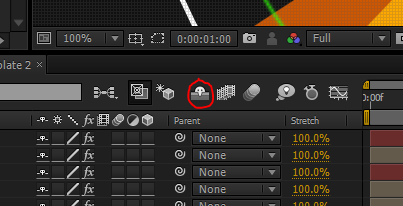
1. Turn off the shy-switch so you can see all layers in the composition. Here is a pic showing how the shy switch looks like: http://feelthevoid.co.ke/wp-content/uploads/2012/04/shy.png
2. Find the layer which name starts with “Reflection”.
3. Turn off this layer by clicking on the little eye-switch on the left.
I hope this helped. If you need more assistance, feel free to contact me via my profile page.
Kind regards, Tobi
Thank you so much for your help and I am so sorry for replying so late! you made an amazing product. Please more amazing stuff keep coming And Good Luck to you
Thanks! Please don’t forget to rate the project on your downloads page: http://videohive.net/downloads
Done Deal 5 star!
Also i wish you will have small tutorial Videos how to change speed and those windows Thank you so much
I will put it on my to do list!
I carefully read all the comments before ask you one more question! Sorry  ! So, I figure out how to add video Background on the main composition and of course letters. Now when Letters switch from one Word to another (Scene to Scene) Video will stop and reflection will appear for several Secs till the next Word. this is When I am having a hard time. Is there any way that my Video behind the text play all the time without interruptions? Thank you so much
And I want to add one more question! When I change font color and put video behind the words Video blends in with that color. On your video tutorial you didn’t say anything about how to change font color. Sorry I am trying hard to figure everything out step by step. (Creating music video for my sister to save some money)
Hi,
1. I guess you mean the fade in and fade out of your footage. If you want it to be constantly 100% visible, go to the scene composition (as well as the additional takes compositions, just as explained in my previous reply).
Find the layer called “Footage” followed by the Scene number, so for example in Scene 2, it is called “Footage 2”. Select that layer with a single left mouseclick, and then hit the letter “T” on your keyboard to reveal the opacity parameters. Click on the little, activated stop-watch icon at the left of “Opacity”, to deactivate the animation on that parameter. then set the value to 100%. This will make your footage visible for the whole scene.
2. You can change the font color in the “character” window. The footage always fades in over the standard color, but when it is fully opaque there is no font color shining through.
Greetings, Tobi
you are so awesome Tobi Thanks so much! And sorry for so many questions… You rock… Also I gave you 5 star from DAY ONE
I love this project! It’s so beautiful. I was wondering if I could change the size of the subtext area. I anticipate there could be some projects where seeing bigger subtext would be beneficial, such as describing a service, product, or idea. When I try to make it bigger by stretching the side, it also stretches the text within, so I know I’m not doing something right. I’m a complete newbie in After Effects, just so you know. Is there a way for me to do that?
By the way, thank you so much for the video tutorial. Helped me a ton!
Thanks in advance.
Andrea
Hi Andrea,
when you are inside the composition where you can edit the subtext, go to (on top of screen) Composition -> Composition Settings. Here you can enter a new width and height and essentially give you more room for your text. You might have to reposition the subtext in the scene composition, though. (Else the bigger subtext might intersect with the big letters)
If you need further assistance feel free to contact me via the contact form on my profile page.
Kind regards, Tobi
One more thing you might stumble upon: the text areas in the subtext comps can be made bigger when you first double click on the text layer so that you can edit the text, and then drag the box bigger.
BRILLIANT!! Increasing the composition settings was the answer! Thank you so much. Hey, while I have you “on the phone”, I’m struggling a bit with the length of the video clips that go in the footage area. I thought maybe a 10 second clip would be fine, but that doesn’t seem to be long enough to fill the time space needed on the individual scene.
Hi, your footage is ideally as long as it is on screen, i.e. the time between it fades in until it fades out. As the pacing is pretty slow in the video, that can be more than 10 seconds. But you can try to stretch the time of your footage. Just right click on it in the timelien and choose Time -> TimeStretch. Be careful though, if you push it too far, your video might be very choppy.
Thank you. I will play with it a bit and see if I can figure out the best way to get it to work. I might just need some longer clips too You’ve been great. Take care.
You’re welcome. If you need anything else, just contact me
OK, I know it’s late, but I’m running into another issue with my modifications. I might want to send it to you and pay you to fix it for me. If we could talk about it tomorrow, that would be great. It has to do with the new position of the subtext during the sections where you see different camera angles of the scene at the same time. Anyway, if I knew where to go to adjust those, then I could do that myself. I can send you a screenshot so you know what I’m talking about.
Hi, I’m not in my office right now, so I have to do this by memory, but in the project window you can find another folder called “additional takes” or something along those lines. It is either in the “scenes” folder or in the folder called “pre-comps”. However, those are the compositions that hold the different camra angles. I thought the position of the subtext is linked to the main scene comp, though.
I think I show these additional takes comps in the videotutorial, too…
Yes! That’s exactly where they are! I was able to get into the additional takes area and move the location of the subtext affected. There were only three scenes that needed manual moving. Got it done! I appreciate your time.
A quick question about rendering. I’ve been reading all the previous comments about speeding up the rendering process, and I’m going to try the “render as images” method just as soon as my current rendering is done. It will end up at about 8 hours for the full render ( there is 1 hour left before it’s done). One thing I was thinking was that since I always only want a final render to be at 1280×720, could I just set the render for that resolution? I’ve been looking at the various render settings and for some reason I am not able to set a render for that size. I can set it for Half, Third, or Quarter, but not any option gives me 1280×720. I was thinking that might speed up the render process, but I could be wrong. I’m looking around for tutorials on how to accomplish this in the render settings, but so far I haven’t found anything. I don’t suppose you know how to do this off the top of your head, or maybe you have a link you can point me to that shows me how to do it? It’s OK if you don’t want to. I know it’s not your responsibility to teach me how to use After Effects
Andrea
Hi, the way I would do it is create a new composition with 720p resolution and drag the output comp in it. then select the output comp layer in that new composition, right click and choose transform -> fit to comp. then render out that composition. I’m not sure if this shrinks down on rendertime, though. You can change the render size in the codec settings, too
Will try those recommendations, thank you very much.
Hi There-
I purchased the product some time ago but am just now getting around to actually editing the scenes & attempting to make my own movie from the file. The rendering time has gone from 18 hours to, as of now, 31 hours. Yikes! Did I read a message a few months ago that you could/would render it for users for a fee? If so, can I do that? Do you have better rendering times when doing it? Just curious ~ I’m open to any ideas on how to get the final file sooner than waiting 31 hours. Let me know…
Btw, although I haven’t seen “my” final product yet – I fell in love with the preview. By far the most amazing thing I’ve seen which is what led me to purchase it. I’ve never used AE before but was willing to buy it & teach myself because it was so awesome looking in the preview…congrats!
James http://JamesWantsToKnowYou.comHi James, yes I offer Rendering for a fee. Rendertime here is around 6 hours. Contact me via my mail: info[at]creattivedesigns.com
Thanks
THANKS! I just sent you an email. Let me know if you didn’t receive it.
James
Hi there, some how i missed your message.
Thank you for your prompt reply, and detailed explantaion.
Regards stuart
Hi mikey, I’m glad I could help. I will answer your other questions about the Cinematic Shatter template later, I’m almost out the door right now
not mikey, Stuart of course
hiya creative. before i buy the template i just wanted to know what programs i could put videos onto it etc. is imovie good enough? all the best i like your work
Hi, this template is for the programm Adobe After Effects, you can only use it with that. Thanks
do i need any special software to use this? Also..If i want to use a logo..what would i do? Just upload the image and it will render it a 3d metal image like in the video?
hi you only need after adobe effects (version cs4 or higher) to be able to make use of this template. To have a logo instead of text, you just place your logo in a specific composition and everything else is done automatically. there is also a videotutorial included where I show you how to do this, so you should have no problems else you can contact me
Hi there… loved the template and purchased it.. although when rendering having issues.. The rendering time for my machine is 18 hours in total.. but after rendering for 9 hours ( 2337 frames).. i get an error. An output module has failed. The file may be corrupted and need to restart after effects. Tried rendering it 2 times over 2 days and have got the same error. Any help regarding this would be appreciated Thanks
Hi, thank you for your purchase.
The problem is not with the template but more with after effects. an error after 9 hours of rendering can happen.
Best thing to do when it comes to heavy render times is, outputting as an image-sequence, for example jpeg. So instead of making one large movie file, set after effects to render each frame as a single jpeg. This has the great advantage, when it comes to errors, you still have all frames left that were already processed and you don’t have to redo those. When you have all frames as a jpeg, you can reimport them into after effects and make one movie file out of it. This does take only a couple of minutes now, as they are already rendered and only need to be read in the cache.
If you still have problems with rendering this project, I can offer you to render it for you for a fee of 15€.
Contact me through my profile page for this
Kind regards,
Tobi
Thank you Tobi for the quick reply.. It worked!!!! it took some time was worth it and loving the template.. Just one more question.. I love scene 1- i.e the one where blue text comes up… i want to duplicate that and use that scene for scene 8… i tried duplicating scene 1 and and made a new scene which would go into scene 8.. but the texts i use also come up in scene 1… scene 1 and the new scene created have the same text.. How do i make sure they have different text and doesent come up as the same?
Thank you.
Hi, doing that without AE knowledge can be tricky and is hard to explain, but this script here makes it alot easier and has tutorials included that shall get you up and running: http://aescripts.com/true-comp-duplicator/
It’s “name your own price”, so you can get it forfree if you type in $0.
This is indeed a great template! Easy to use with an astounding result. However I have a question. In your example you’ve showed a logo. In the tutorial you don’t show how it’s done… Can you help me to fix this? Thx
Hi, for sure I can help you with that.
1. open the composition where you would edit the text of the scene.
2. Instead of changing the text, you can select it and delete it or just make it invisible by clicking on the little eye-switch left to the layer name.
3. Import your logo-image with file -> import -> file. Make sure your image has transparency. You can find your imported logo in the project-window.
4. Drag your logo from the project window into the composition, where you just deleted the text. If needed, scale your logo to the correct size.
5. You can now proceed like shown in the tutorial with adding your images that shall be revealed within your logo.
Hi there, i would like the words in Scene 1 to start from further back, is this possible, and if so, how would i do it.?
Regards Stuart
Hey Stuart,
yes that’s possible.I assume you mean Scene 2, that is the first real Words-Scene, Scene 1 as it is called in the project is just the blue text at the beginning.
Okay, open The composition called “Scene 2”.
Click on the shy-switch to se all layers (the shy switch looks like this: http://4.bp.blogspot.com/-bioChFlHabI/T5lYcJ4gNAI/AAAAAAAAA3Q/0Om3fLP3Cnw/s1600/shy.PNG
Find layer number 15 called “Camera 1” and select it.
Hit the letter “U” on your keyboard.
The position-parameters should reveal, as well as 2 squares under the layer bar. These two squares are the keyframes. Position the timeline-cursor at the beginning, so that it is right at the point of the first keyframe. Now you can change the third position parameter, right now it should be “-11650,1”. To move the camera further back, set it to a lower number, for example “-20000” (as it is negative the number actually increase, I’m sure you get that )
You just hcanged the start position of the camera, you can do the same for keyframe number two to change the end position. If you want to have the same speed like before you changed it, reduce the third parameter of keyframe nr 2 for about the same amount like you did with keyframe nr 1.
This may sound super-complicated but just try it out
Are you able to:
1. Make the words smaller so that I can fit a few more words in the frame?
2. Change the background color to dark?
Hi, yes both is possible and very easy to do.
I sent you a message through your profile. Can you let me know if you got it.
No, sorry, I got no mail. That’s strange, I have no spam-filter or anything… can you send your message again to info[at]creattivedesigns.com ?
Hello creattive, tnx for the gorgeous template, 1 question I have is how can I speed up the length of the whole projext without disturbing or speeding up its videos (so it doesn’t look in speed motion- I put vodepos only insides the words patterns)? Thank you and excellent sales! Good luck!
Hi, to do that properly is tricky, as your videos are inside what you want to speed up. BUT – as always – there’s a cheap trick that might fit your needs: Essentially, what you can do, is speed up the whole thing, and slow down your videos, so that they are in the end running at normal time.
First of all, let’s speed up the whole thing: Go to the “Output” composition, and at the timeline, right-click ABOVE the layers (where is written: “source name” or”layer name”) and go to “Columns” and make sure “Stretch” is enabled.
When it is enabled, you find a column called Stretch somewhere besides the layer’s name. Go to the layer called “Animation” and change it’s Stretch-Value from 100% to a lower number, to reduce the length. So right now it’s about 2:30 long. If you change the stretch to 60% it’s only about 1:30 long (2:30min = 150 seconds x 0.6 = 90 seconds = 1:30min). I think you get the math here
Set it to your desired new length.
You see that the length of the layer – of course – changes. Select thelayer, hit “O” and then “N” on your keyboard, to set a new out-point for the animation (else you have pure black at the end)
Now, go to the placeholders for your video and if needed, enable the stretch column, too. Set the stretch factor to 10000/(stretchfactor you used before).
So if you used 60%, then it’s 10000/60 = 166,67% for your footage.
Do this for all your videos.
This is an absolutely gorgeous template!
What if I Wanted to use this template to make a promo video to create awareness, then a year later or so wanted to change the footage to create another promo for something…do I need to keep buying this template to remake new final videos, or does one purchase allow me to make many versions?
Thanks,
Newbie 
Hi MickelTrickel,
the license part is confusing, I totally agree Simply put, you can make one customization per license. So if you change the footage, text or anything else you need another license as you do another customization.
So yes, if you want to make more videos, you need several licenses.
All the best, Tobi
Gotcha. Well cleared up for me. Thanks!
I have combined my Developing success song with Creattive work and it’s just awesome!
Thanks everone for your comments!
@Creattive – thank you for the suggestion, i’ll definitely try that as it sounds more reasonable than render the project for several hours and get AE crushed right at the end losing all the data. I am more than sure that you know that feeling but I will say it just for the record: I am in love in this project, found it very professional, elegant and so realistic and therefore I simple need it to work & be completed. I’ll let you know about the result. Kind Regards. Marzena
I’m glad that you like the project Let me know when you need further assistance